



Utilizing Assemblies in Buildertrend Takeoff
Once the scale has been accurately set on your plans, you can start to use assemblies to begin the takeoff. This will ensure you have accurate materials that will help when budgeting a project.
First, scroll to the Templates section to access your assemblies.

Choose your assembly and click the green play button to access.

Next, you will have the option to update the assembly including, linear width, linear color, price per linear foot as well as the transparency of the line. Once you have updated all information, click Start.

You will then be taken to the Takeoff Property of the assembly. Here, you can update pricing and markup for each specific part by clicking the Edit button next to each part name.
Click Save to begin to measure.

Zoom in on your plans to get an accurate measurement for each room utilizing the chosen assembly.

At this point, you can view your Estimate report to see pricing information. This report is located in the top right corner of your Buildertrend Takeoff. You will not need to sync to Buildertrend, as the flow of information is automated.
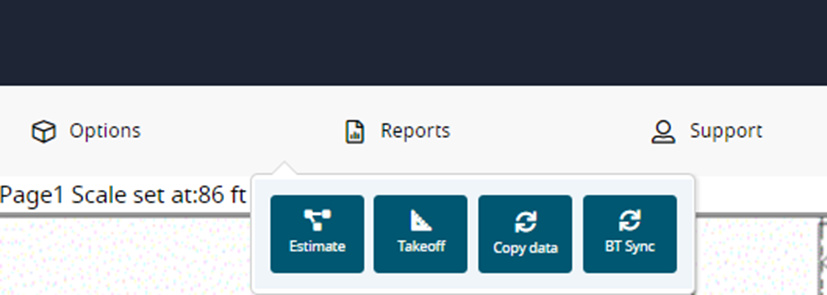
Navigate back to your Buildertrend account and refresh the page. All line-item data is automatically synched with Buildertrend.
For any pricing or markup changes that need to be made for a budget, they will have to be done in Buildertrend Takeoff, to be reflected in your overall estimate.
At this point, you have successfully utilized assemblies for accurate job costing in Buildertrend.

Interested in Learning More? 📚
Visit the Buildertrend Learning Academy to explore additional learning opportunities — from live group trainings and certifications to on-demand courses and more.
For questions or additional support, contact our Customer Support team via Live Chat, email support@buildertrend.com, or call 1-888-415-7149 — we’re always happy to help.
Still have questions or need our help finding a resource?
Contact our Customer Success team.
Mon - Fri
8:00am - 5:00pm
USA (CST-6)