



Estimate Overview
The Estimate allows for proper contract building on the Job level, incorporating standard job expenses in addition to Bids, Selections and Allowances. In addition to a detailed Cost Code breakdown, terms, conditions and project scope can be formatted and displayed in a professional presentation for your client.
When building your Estimate, you have the option of utilizing a full estimate Template, adding Cost Groups from your Cost Catalog, importing from Excel, or building each line from scratch. Markup, Margin and applicable Tax may also be added to account for overhead costs.
No matter your method, you can expect a simple electronic release process when you're ready to gather client signatures.
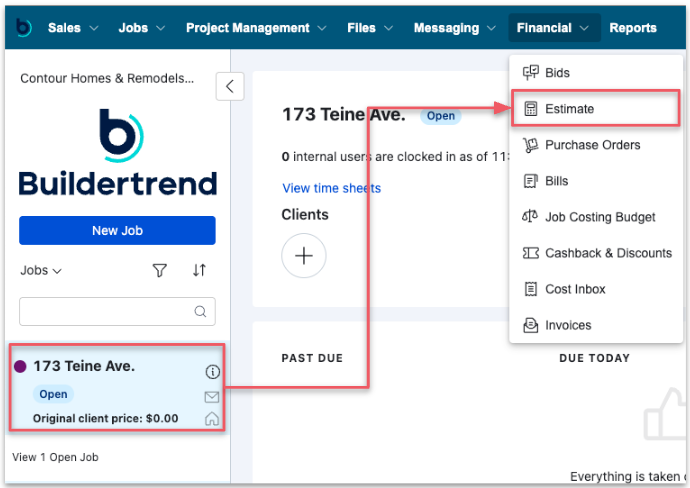
Begin by selecting a Job, then navigate to Estimate from the Financials dropdown.
Before creating your Estimate, let's review your Estimate Worksheet options.

Column Settings: Edit worksheet display by adding/removing columns.
Filter: Filter by Cost Code and Cost Type.
Switch Views: Switch between Proposal Worksheet for building & editing your Estimate and Cost Code / Group view for sorting options.
Group By: Choose your preferred method for grouping your Estimate Items: by Cost Code Grouping or by Custom Grouping.
Reformat: If Custom Grouping is your selected Group By option, reformat allows you to remove the custom formatting or switch to Cost Codes Grouping
Sort: Allows you to sort your Estimate by Cost Codes.
Add Item: Create new line item on the Estimate.
Add Allowance: Create a new Allowance directly from the Estimate.
Add Group: Create a new custom group on the Estimate.
Generate Specs: Generate Specifications from Estimate line items.
Add from Cost Catalog: Add Cost Items and Cost Groups as Line Items.
Add from Cost Codes: Add multiple Cost Codes at once.
 Launch Takeoff: Open the Buildertrend Takeoff platform.
-
*Note: This option will only be available if you have Buildertrend Takeoff
Profit and Tax: Manage Markup or Margin and applicable Tax settings for the Estimate.
Template Import: Add a pre-saved Estimate Template
External Import: Import an Estimate from Excel, Quickbooks or Square Takeoff.

Creating an Estimate
‼️Important:
Establish your Cost Codes prior to building your Estimate.
To begin building your Estimate, choose your preferred method.
-
Create line-by-line with Add Item
-
Import from an Excel spreadsheet
-
Import from a Buildertrend Template
-
Add from Cost Catalog
-
Add from Cost Codes
Adding Items by Line
Click Add Item to add an individual line item to your estimate.

Fill out the important information in the Cost Details such as Title, Cost Code, Cost Type, Group, Description and Internal Notes (information that only your internal team can see; not viewable by any client.)

💡Pro Tip: Build Out Your Scope with Specifications
Learn more about creating Specifications here
Next, add Cost Information by adding Unit Cost, Quantity, label the Unit if you'd like, then set your Markup or Margin.

Markup or Margin may be added as:
-
A percentage of the Builder Cost (%)
-
A flat dollar amount ($)
-
Selecting (—) will allow you to determine the Client Price manually without determining a Markup or Margin amount.

Filling this information in will give you a Builder Cost and an Client Price for the item.

If you're adding a new item that will be frequently repeated on other jobs, select the Include Item in Catalog checkbox, then Save.


✏️ Note: Currently, only items not linked to a bid or selection can be marked as Taxable.
For more information on Taxes:
-
If you are not integrated to an accounting software, review this article.
-
If you are integrated with QuickBooks Online, review this article.
- If you are integrated with Xero, review the Invoice options dropdown in this article.
💡Pro Tip:
Once line items have been added to your estimate, you can edit the line item directly on the estimate rather than opening each item.
Import from an Excel spreadsheet
Click Import From Excel or External Import > Excel to import line items to your estimate from an excel spreadsheet.

From the Import Wizard, click and download the Excel Template.

Input the estimate data from your previous estimating process into the applicable fields on the downloaded Estimate Template excel spreadsheet.

Once your Estimate Template is filled out and saved to your computer, click Browse Computer and select the excel document from your computer then click Next.

Map each column from the imported Excel file with data points in Buildertrend to ensure the import is accurate. Click Next to proceed.

Review any unmapped Cost Codes and content, matching them with the corresponding data in Buildertrend. Click Next to proceed.

Your import is now complete!

Import from a Buildertrend Template
Click Import From Template or Template Import > Import Job Template to import line items to your estimate from an excel spreadsheet.

Select the desired template from the Source Template dropdown, then check Estimates under Financial (the number in parenthesis will indicate how many cost lines are included in that template's estimate), the select Import.

Your import is now complete!

Add from Cost Catalog
Click the Add from Cost Catalog icon from the toolbar.

Using the multi-select checkboxes, select all the items from your Cost Catalog that you want to add then click Add To Estimate.

Add from Cost Codes
Click the Add from Cost Codes icon from the toolbar.
Using the multi-select checkboxes, select all the Cost Codes that you want to add line items to the estimate for, then click Add.

This will add blank line items based on the accounting code that will then need to be edited.


Locking the Estimate
When finished building your Estimate, you can Lock the Estimate prior sending to the Budget, to ensure no further edits are made to the estimated costs while you send proposal(s) out to your client for approval. Approved Bids and Selections will update the Estimate even when locked.
From the top-right of the estimate, click Lock Estimate, and confirm from the popup modal that you are locking your estimate.

If changes need to be made to the original estimated costs, you can easily unlock the estimate by clicking Unlock Estimate.

Formatting the Estimate
A general list of cost codes on the Estimate may work well for your internal team, but it’s often not the version you want to present to your client. Buildertrend lets you organize your cost lines on the Estimate with groupings.
Estimate Formatting Help Video
-
Custom Grouping: Best for unique formatting such as room-by-room, lists, or assemblies. If items are not assigned to a group, they are placed in an Unassigned group.
-
Deleting all Groups will create a list view of cost lines.
-
-
Cost Code Grouping: Best for automatically formatting items by cost categories, phases, or divisions, i.e. the Cost Code structure that you have set up in your account. Items are assigned to their respective cost code group, even if renamed. These groups can be edited and moved into a custom order.
✏️ Note: The grouping selected on the estimate will also be the grouping used on your proposals when estimate costs are included.
To choose your grouping option, select the Group By icon in the toolbar on the right.

Custom Grouping
Custom Groups allow a unique organization of your estimate cost lines such as room-by-room, lists, or assemblies.

To create a new group, select Add Group at the top of the worksheet, or from the side toolbar.
Create Title and optional Description. When creating a proposal for your client, you can choose for these fields to be client-facing, so be as descriptive as you see fit. Click anywhere out of the window to Save.

To add existing items into the new Group, check the box next to the Cost Items you would like to move and select the Move Items icon from the toolbar.

Now, use the dropdown menu to select the Group or Subgroup you would like to move these items to and select Save.

To add new items into a Group, or to create a Subgroup, click the Plus Icon (+).

To reorder individual cost lines, simply click the six (6) action dots to the left of the title of the cost line to drag and drop them into the same, or different Group.

If you chose to Group By Custom Groups to display your cost lines a specific way for your clients but your team works best viewing the estimate from a simple code organization, select Switch Views on the right toolbar to adjust how your cost items are displayed.
-
Proposal Worksheet will take you into your client-facing options.
-
Cost Code and Takeoff Assemblies (only available if you have Buildertrend Takeoff) provide high-level internal viewing options.

Proposals
Proposals are your go-to tool for professional quote presentation. They lay out the project scope, offer a detailed cost breakdown, spell out working terms, and even provide an option for an electronic approval signature.
Preparing a Proposal for Your Client: Details
Along with your Cost Items, Buildertrend gives you the flexibility to include text, attachments, and other elements to create a polished, professional proposal for your client. This ensures that your proposal not only presents accurate pricing but also provides clear context and supporting details.
To enhance the client experience, click the +Proposal to add personalized introductory and closing text, making your proposal comprehensive and visually appealing.

Add key information to your Proposal within the Details tab.

-
Collect signatures – Checkbox indicating if you plan to collect signatures for the proposal.
-
Required signees – If Collect signatures is enabled, select the client(s) who's signature is required for proposal approval. All selected clients must approve before the proposal is considered complete.
-
-
Title – Provide a name that helps organize and identify the proposal internally while providing a clear reference for your client
-
Approval deadline – An optional field to set a deadline for client response, helping to keep your project timeline on track.
-
Introductory text – Appears above the cost items. Typically includes general information about your company, the scope of work, and any initial details like draw schedules.
-
Closing text – Appears below the cost items. Often used for contractual terms, conditions, and any additional legal or final information related to the proposal.
-
Attachments – Upload relevant files or create new Word/Excel docs directly from the proposal.
Preparing a Proposal for Your Client: Client Preview
Select the Client Preview tab to adjust additional settings, and view the copy your client will receive to their email address once you Release the proposal.
Using the dropdown, you can choose between the Standard Layout Buildertrend provides, giving you a simple, clean look for your clients.

If you would like to customize your layout and what your client can or can't see, select Custom Layout.

Utilize the Layout Options, Customer Information, and Company Information options to customize the header of the proposal.
Next, customize fields shown to your client with the Display to client dropdown, by selecting the checkboxes to add fields. Selecting the (x) on chosen fields will remove them from the Display to client options.

Field Definitions
- Item Title = Titles associated with the line items
- Cost Code = Cost Codes used on the line items
- Description = Description of the line items
- Cost Type = Type of cost assigned to the line items
- Marked As = Shows if the cost lines were marked as a bid item or allowance
- Quantity/Unit = Amount and unit type of the line items
- Unit Cost = Cost of each line unit
- Builder Total Cost = Total cost for the builder (cost of line item – markup)
- Markup = Percentage of markup on each line item
- Markup Amount = Amount of markup on each line item
- Unit Price = Price per unit
- Total Price = Total price of the proposal – Builder Cost + Markup
- Group Price = Total of all cost lines in a group
- Tax = Total amount of tax on line items
- Tax Status = Shows whether or not a line item is taxable or non-taxable
- Total Cost = Total cost of the proposal – Builder Cost
- Total Markup = Total markup amount of the proposal
- Total Approved Options = Total of all costs associated with approved options
Tax Display on Proposals and Client-Facing Pricing
End-to-end tax recognition is available for jobs created on or after January 14th, 2026. Jobs created before this date do not not reflect tax throughout all client-facing views.
If a tax rate has been set on the Job and line items are marked as Taxable on the Estimate, tax will now display on client-facing pricing views.
On Proposals
Proposals now display:
- Subtotal
- Tax
- Total Price (tax-inclusive)
The Total Price shown to the client includes applicable tax from taxable Estimate line items.
This allows you to present a clear, tax-inclusive contract price upfront.
On the Job Price Summary and Client Views
Tax-inclusive totals are also reflected in the following client-facing areas:
- The Job Price Summary (JPS)
- Includes tax in Total revised price
- Displays the total tax amount separately
- The Client Landing Page
- Includes tax in the Total revised price
- Displays the total tax amount separately
- The Invoice page
- Includes tax in the Total revised price
- Tax is reflected in the invoice total
Releasing the Proposal to Your Client
When ready to share with your client, select Send. If they are active on Buildertrend, they may view and approve within their Client Portal. If they are not active on Buildertrend, they will receive an email to view and approve the Proposal.

If your client is active on Buildertrend, they can view and approve within their Client Portal.

If your client is not active on Buildertrend, they will receive an email to view and approve the Proposal.
Approving the Proposal on Behalf of Your Client
If you need to approve the proposal internally on behalf of the client due to extenuating circumstances, select the ellipsis next to the required signee’s name and click Approve for "signee."

Confirmation of signature and additional comments may be added at the time of signing.

Click Approve to save signature.
Printing the Proposal
If your client isn't active in the project or doesn’t have access to the client portal, Buildertrend gives you the option to print the proposal. This allows you to collect a physical signature and keep the approval process moving forward.
From the proposal screen, select Print from the ellipsis menu to generate a printable version.

From the print preview screen, customize your Printout settings to suit your needs, such as showing or hiding images, signature lines, or adjusting page breaks, then click Update Printout to apply your changes.

Populating your Job Costing Budget
After finalizing your project costs and scope, and establishing the Contract Price by securing a signed proposal with your client, you can now send the finalized estimated costs to your budget to start job costing.
From the Estimate, select Send to Budget.

Next, review the pop-up modal displaying the Total Price, Builder Cost, Profit, and Margin. Once confirmed, click Send to Budget to finalize.

Your Job Costing Budget will now be populated using the costs from your Estimate.

Unlocking the Estimate: Post Send to Budget
Once you send the estimated costs to the Job Costing Budget, your Estimate will automatically lock. Unlike manually locking the Estimate beforehand, this method prevents the Estimate from being overridden by any approved bids or selections.
You can manually unlock the Estimate after sending it to the budget, but doing so will result in the following:

Multiple Proposals
From the initial concept and design agreement, through discussions on details, to settling on a final contract, there are multiple iterations of cost and scope.
Using multiple proposals based in the Estimate unlocks the ability for you to collaborate with your clients as scope is refined, maintaining a history of iterations along the way, from a single location within the platform.
Proposal Dashboard
The Proposal Dashboard provides access to all proposals created for a specific job.
-
Legacy proposals created on a lead that was then converted to the job, such as:
-
unreleased proposals.
-
declined proposals.
-
released proposals.
-
-
Proposals that are created from the Estimate.
To access the Proposal Dashboard, click on Proposal Dashboard from the Estimate.

Once a proposal is released, you’ll have access to the estimate worksheet, a downloadable .CSV version of the worksheet, and a PDF copy of the proposal for your records.

Creating Multiple Proposals
After your client reviews the initial proposal, if they have any questions, concerns, or feedback about the scope or pricing, you can update the estimate and generate a new proposal for their review.
From the Estimate, you can make any necessary updates, including:
-
Revising costs
-
Adding or removing cost lines
-
Updating groupings
-
Modifying options
-
…and more, depending on what needs to be adjusted

When you have finished with your estimate adjustments, follow the previously outlined steps to create a proposal for this estimate version.
💡Pro Tip:
When refining your estimate after a client declines a proposal, you can pull cost lines from the previous proposal estimates. This saves time by reusing historical details instead of re-entering information from scratch.
-
On the Proposal Dashboard, click View Worksheet to view the estimate for the previously sent proposal.
-
Use the checkboxes to select the cost lines you want to reuse, then click Copy to estimate to add them to your new estimate.

All Proposal versions will be shown on the Proposal Dashboard.

Templating your Estimate
Feature Templates in Buildertrend save time, effort and ensure accuracy between projects of similar types.
Estimate Templates allow you to save all Cost Items, Descriptions, and even Quantities and Costs, although all fields are editable one applied to the job to capture each job's unique build.
Create as many Templates as needed to keep productivity at the center of your workday.
Estimate Templates Help Video
Interested in Learning More? 📚
Visit the Buildertrend Learning Academy to explore additional learning opportunities — from live group trainings and certifications to on-demand courses and more.
For questions or additional support, contact our Customer Support team via Live Chat, email support@buildertrend.com, or call 1-888-415-7149 — we’re always happy to help.
Still have questions or need our help finding a resource?
Contact our Customer Success team.
Mon - Fri
8:00am - 5:00pm
USA (CST-6)